
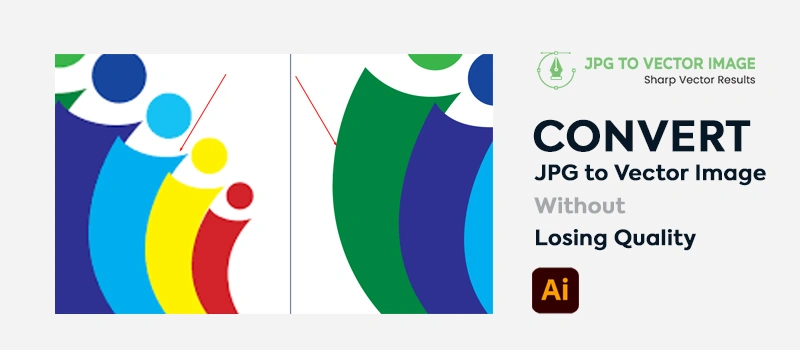
JPG files are good for raster images. But the problem is it loses the quality if you scale the image and print it. The problem isn’t your printer. It’s the file format. Logo, banner, business card, and machine drawing need a suitable file format that never loses quality.
A vector image is the solution for that. Vector images stay sharp at any size. You can use it for logos, printing a business card, a billboard, embroidery on caps, and other print media. So, how to convert a JPG to a vector image without losing quality?
We will share the manual tracing method in Adobe Illustrator. It delivers far better results than any automatic tools.
Why do JPG Files Lose Quality?
Have you tried to zoom in on a JPG logo? You will notice blurry squares. Those tiny squares are called pixels. When the image is small, those pixels look sharp. When you scale the image, those pixels look visible. There are no smooth lines in JPG images. That means they depend entirely on resolution.
If your logo was created at 800×600 pixels, that’s the greatest detail. If you try to scale it, it doesn’t create new detail. JPG files are compressed to reduce file size. That compression removes image data. Every time a JPG is saved again it loses quality.
JPG vs Vector Key Differences
The main difference between JPG and vector images is the quality. Vector images are shape-based. You can zoom in the vector image as much as you want. You will never see visible blurriness in a vector image. You can scale infinitely without losing sharpness.
You can print a vector logo on both a business card and a billboard. It will stay crystal clear in any size either way. Vector images are made of paths and anchor points. That’s why vector files keep sharp lines at any size.
How to Convert JPG to Vector Image Manually Without Losing Quality
Duplicate The JPG file
The advantage of Manual tracing is no dependency on the image shape. We can create any shape by following the manual method. We’re going to show the conversion method using this JPG logo file.
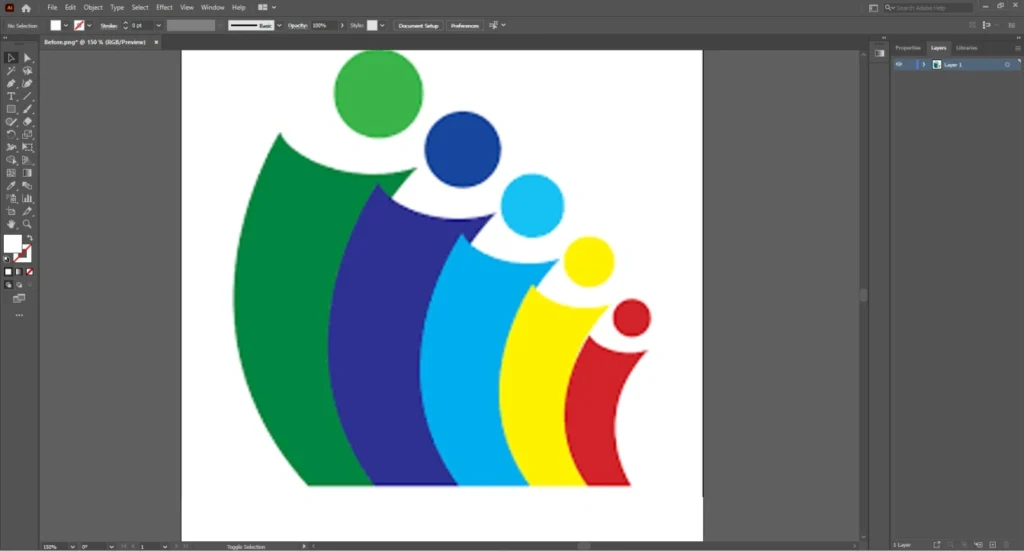
As you can see here, the logo is looking very distracting because of the rough edges.
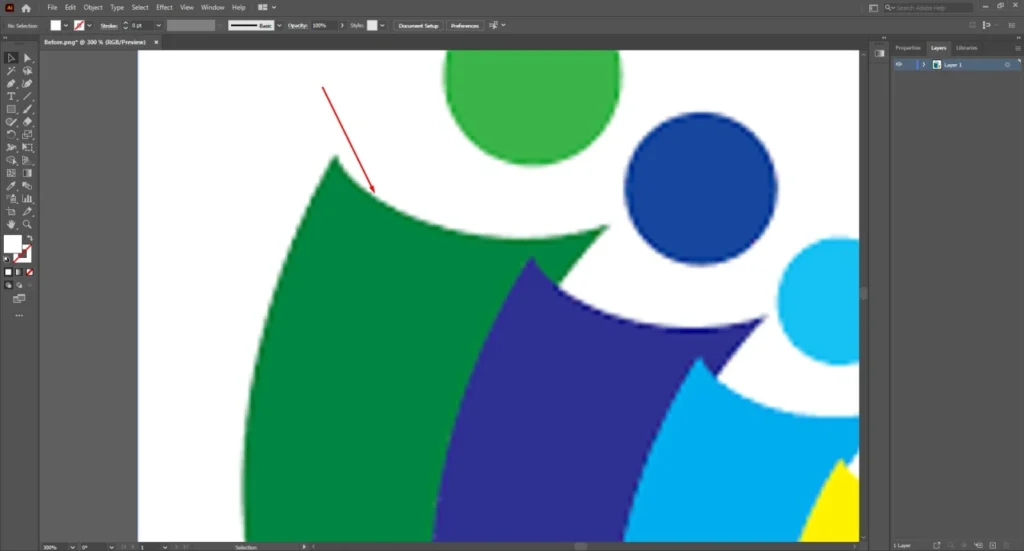
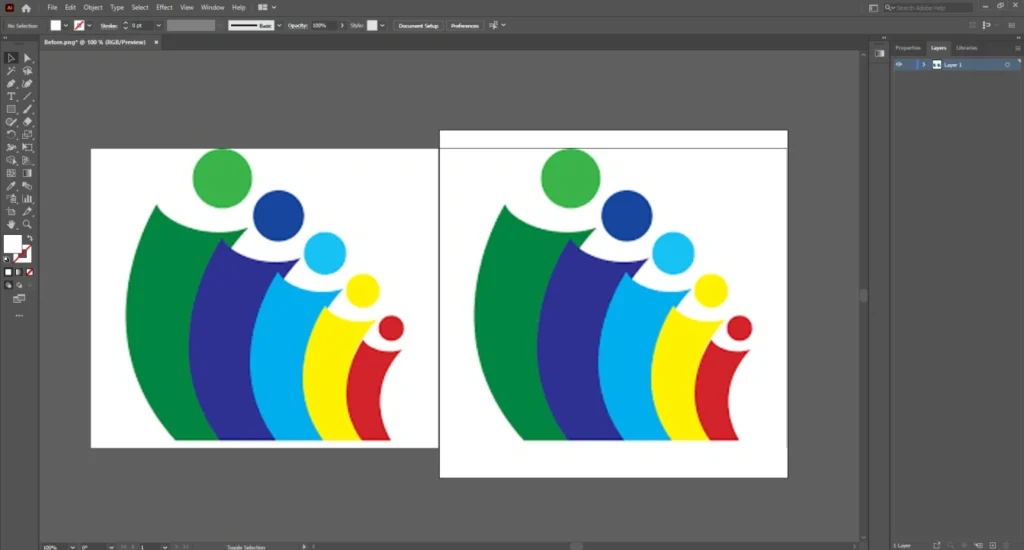
This is not suitable for any professional requirements. So, let’s start with making a copy for the JPG to vector conversion. You have to hold the ALT key and drag a duplicate copy by clicking on the JPG image.
Apply Pen Tool
Pick the pen tool from the toolbar or press P to enable the pen tool. This is the main tool that we are going to use for the manual JPG to vector tracing. Increase the stroke size to 1 pt so that the path lines are visible.
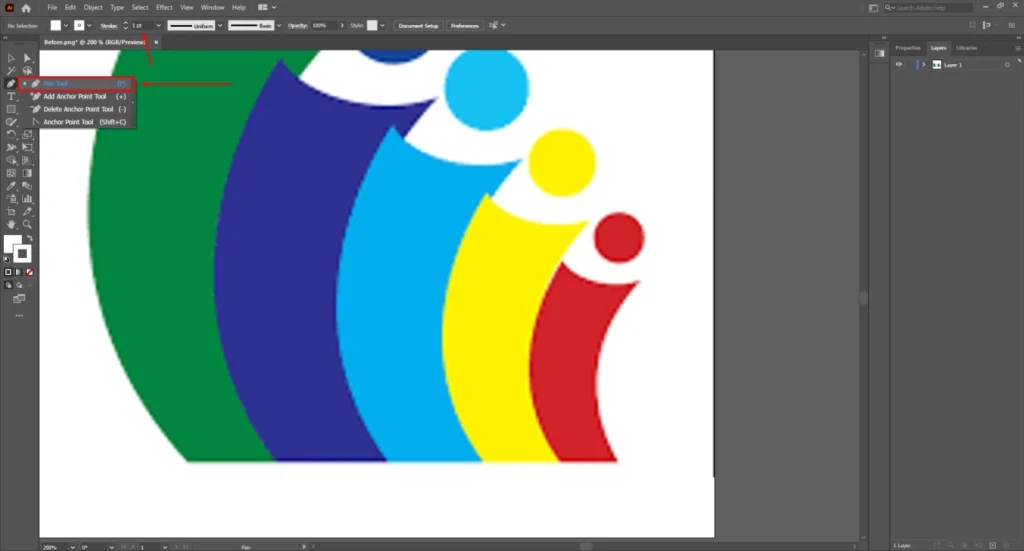
Click on a shape to recreate the anchor points. After creating a curved line, hold the ALT key and click on the anchor points to delete the path direction line. Using the path, you have to cover the object shape.
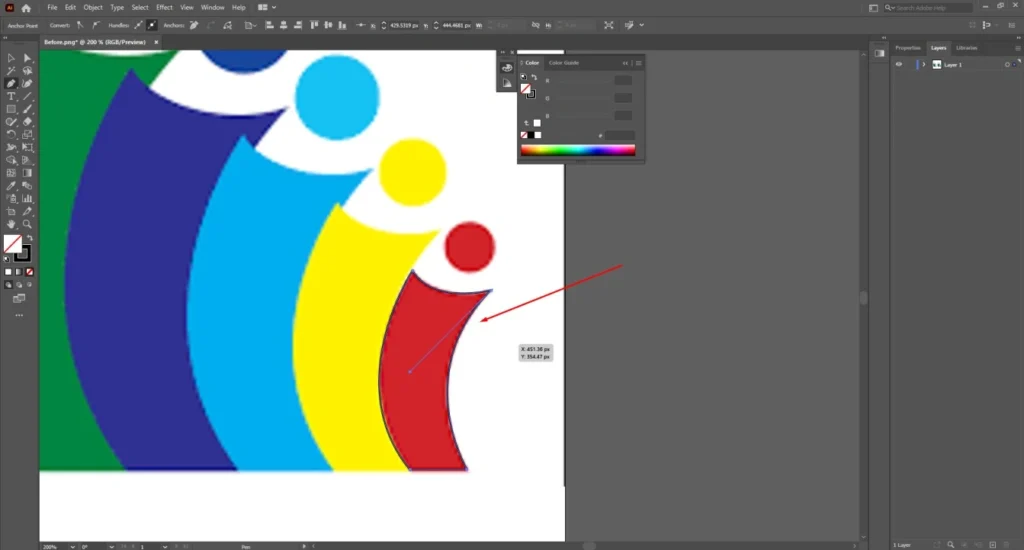
Cover Other Shapes
After completing one shape, you have to cover the other shapes as well. If there are similar shapes in the image, you can just hold the ALT key and click on the shape to duplicate it.
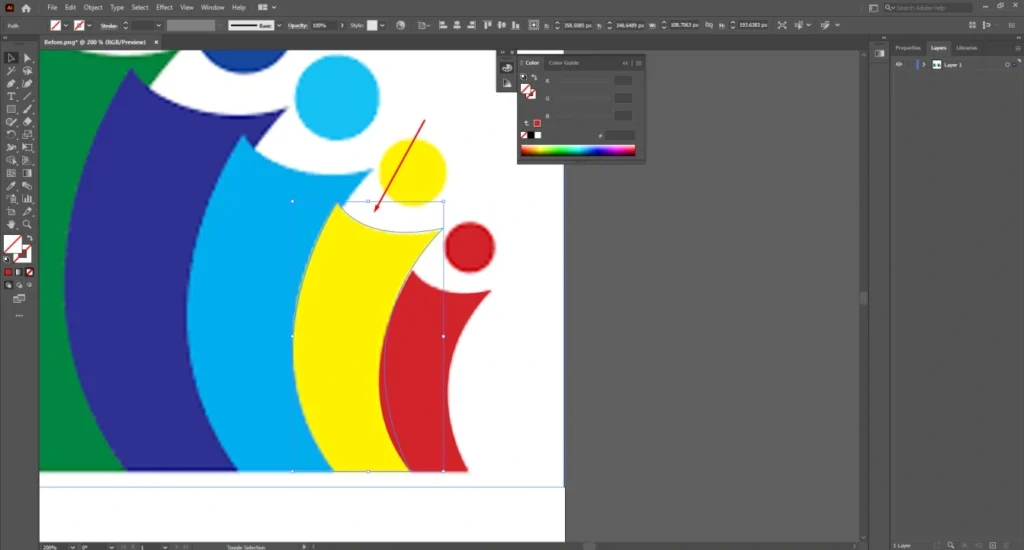
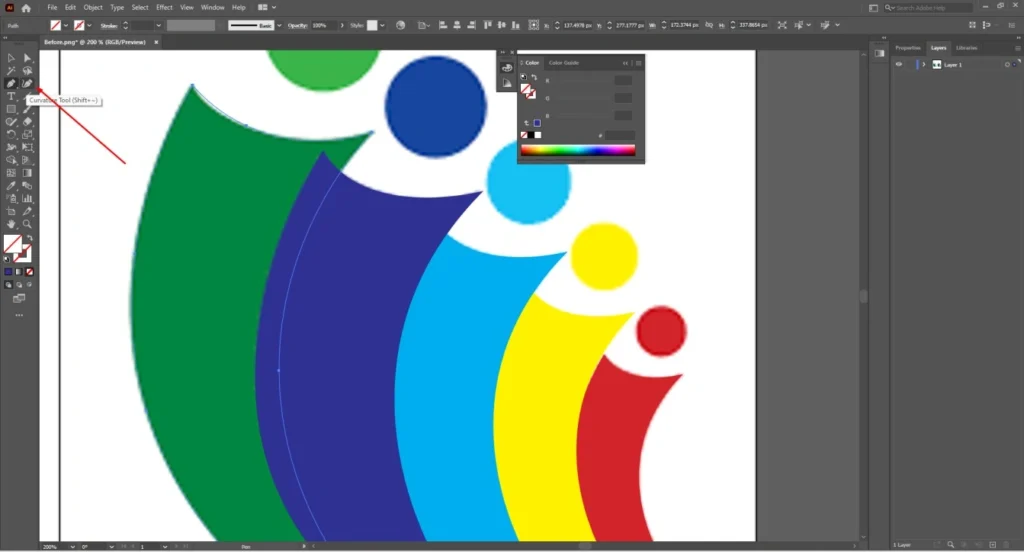
If the shape needs some adjustment, you can use the curvature tool for that. Using the curvature tool, you can customize the shape and also add new anchor points where needed.
Apply Fill Color
Click on the shape that you want to color and select the color picker option from the toolbar. Next to that, you just have to click on the sample color. You will see the shape has been filled with that color. Then, you have to arrange the shapes according to the sample image.
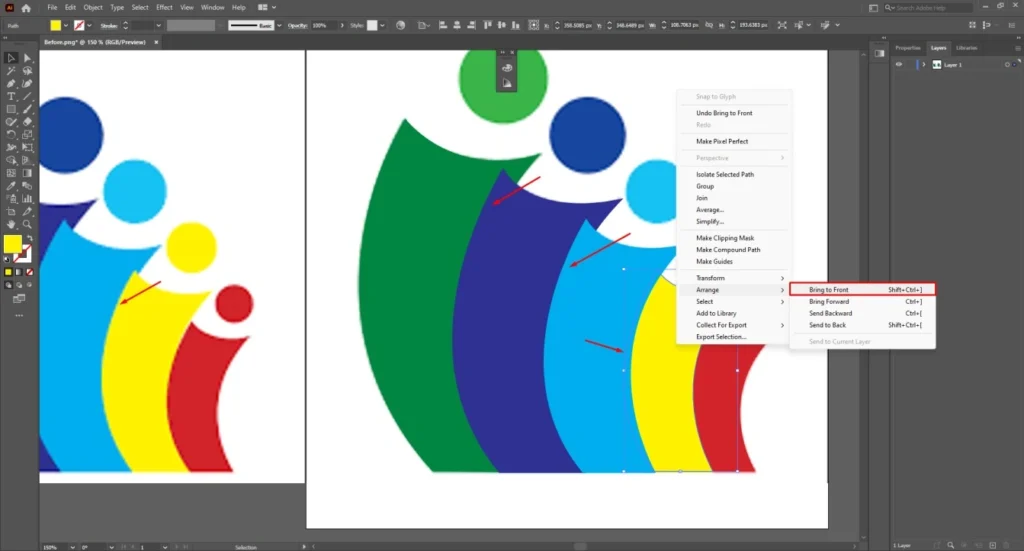
For this type of logo file, click on the right button and select “Arrange”. We are going to use this feature to arrange the shape according to the sample image.
Draw Over Remaining Areas
Now, we have to trace the circle. We can do that easily using the Ellipse tool. Hold the shift key and draw a circle to cover the remaining areas.
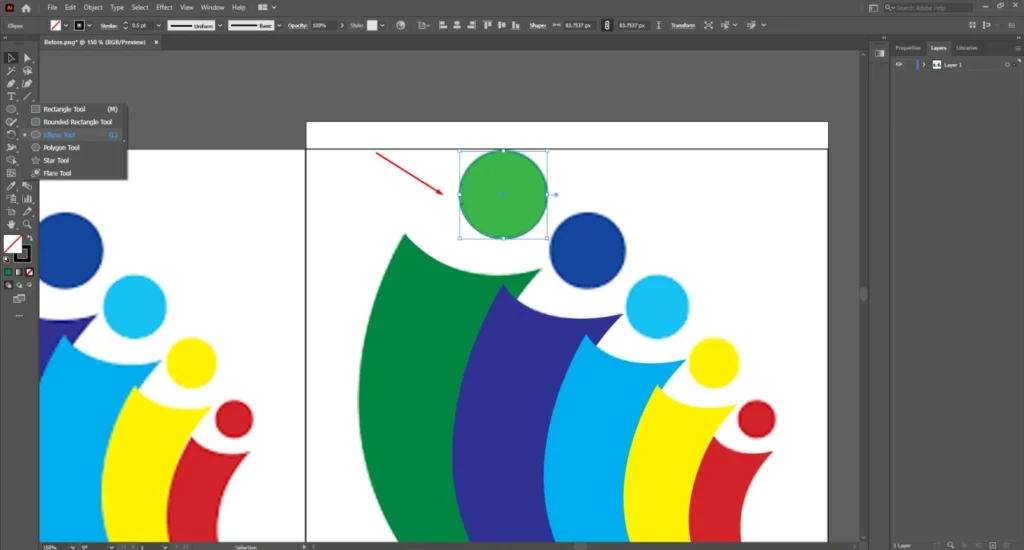
After that, apply fill color on the circle following the same way. Finally, select the entire shape and choose the group from the right-click options.
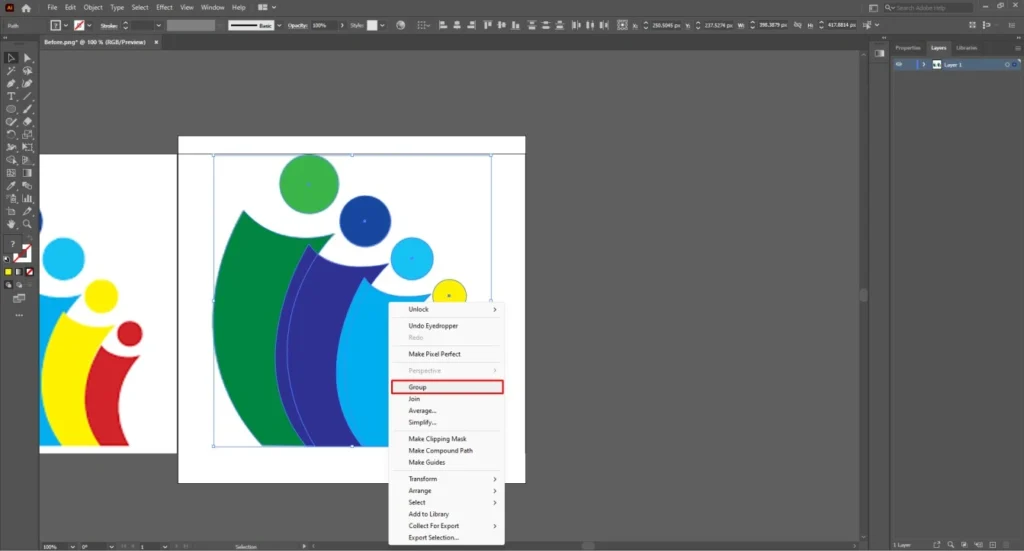
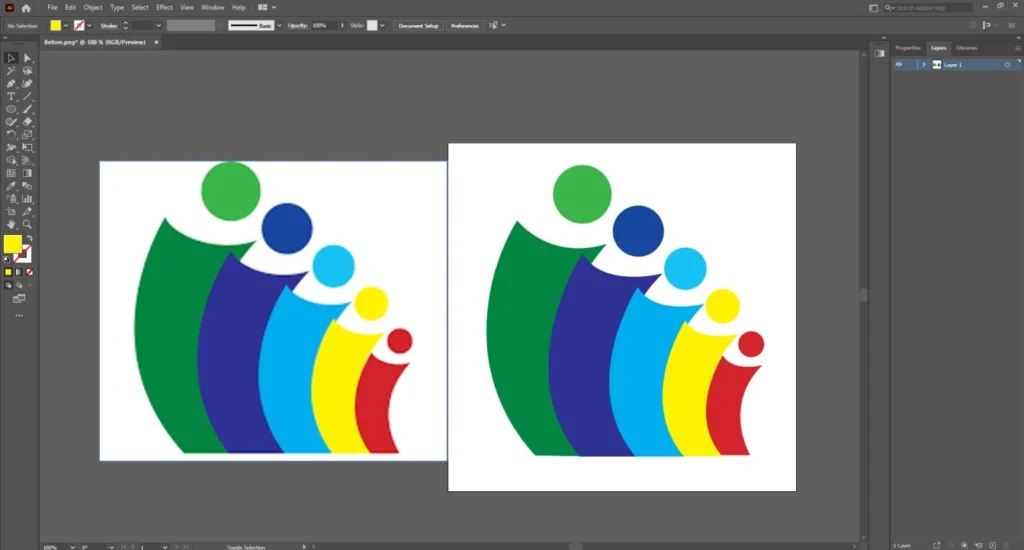
This is the final look of the new vector file.
Apply Transparency
For the Vector logo, we need a transparent background so that we can use the logo on any background. At this stage, our vector logo is available with a white background.
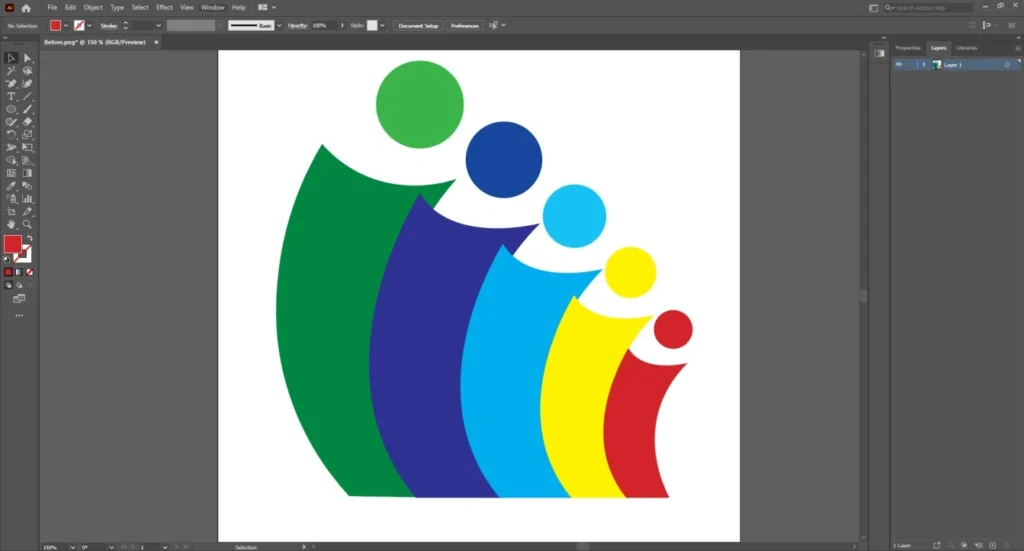
Go to the view option from the top and choose ‘Show Transparency Grid’ from the view menu. It will present the vector image on a transparent background without losing quality.
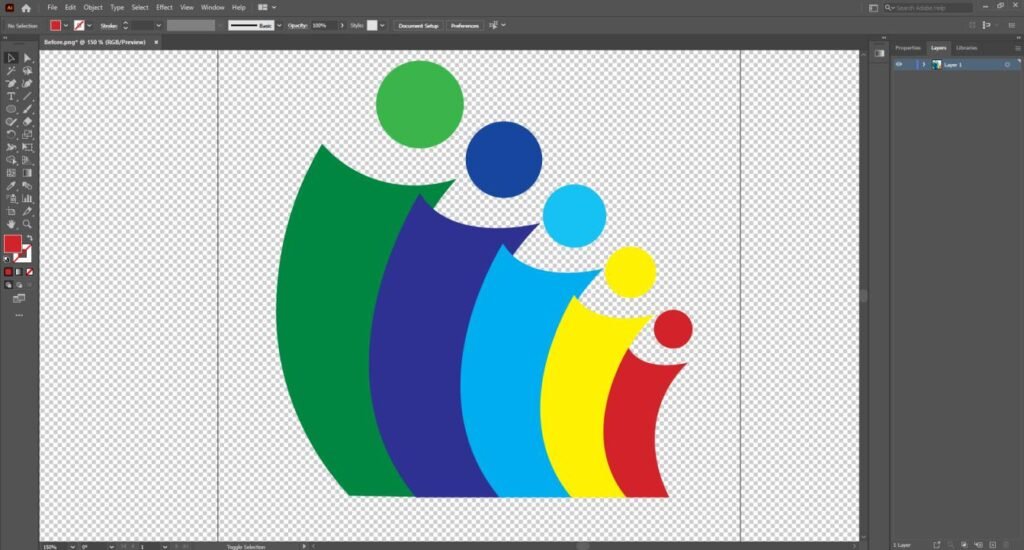
Now, the image is ready for saving. Save it as a vector format and you can use the logo in any size. You can use it everywhere without losing quality.
3 Mistakes That Damage Vector Quality
- Automatic Image Trace affects the final vector file. For complex images, the outcomes look very poor.
- More anchor points do not ensure better quality. You have to create the anchor points smartly where necessary.
- Color issues are common during vector conversion. So, you have to match the color perfectly with the sample image.
Sum Up
Manual tracing using the pen tool is the best option for JPG to vector image conversion without losing quality. Automatic tools can do it fast but there are lots of inaccuracies. You will face messy paths, rough edges, color issues, and distorted shapes.
Do you have some blurry JPEG images that you want to convert into vectors? We can do manual vector conversion for printing T-shirts, embroidery, signs, banners, and branding materials in the USA. We can guarantee zero quality loss.
FAQ’s
Do vector images lose quality?
No. Vector images do not lose quality. They are made of paths, not pixels. You can scale them to any size without blur.
Can you convert JPG to a vector?
Yes. Our professional vector designer team can convert any JPG to a vector using Adobe Illustrator. We do it through manual tracing for the best accuracy.
Can I resize a vector image without losing quality?
You can resize vector files infinitely without losing sharpness. That’s the main advantage of using vector images.
Can I resize an image without losing quality?
If it’s a raster JPG image, resizing larger will reduce quality. Only vector images can be resized without quality loss.
What is the best image to vector tool?
Adobe Illustrator is the most reliable tool for converting JPG to vector. It is considered as the industry-standard application for vector graphics.
What causes image quality loss when resizing?
Quality loss happens when pixel-based images are scaled. The pixels cause blur. The tiny pixels looked like visible edges.