
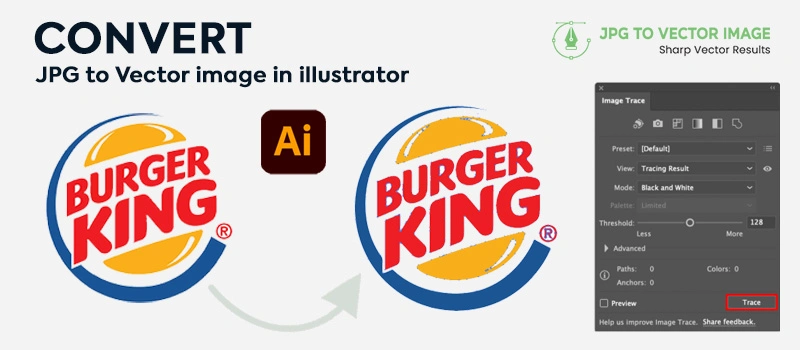
Adobe Illustrator gives the highest accuracy for JPG to vector conversion. Inside Illustrator, there are both manual and automatic vector tracing features available. Different types of preset options are available to choose from, as per image type.
We can properly convert a JPG to vector image in Illustrator using the image tracing feature. The result will be accurate. Let’s learn from our vector expert how to convert jpg to vector image in Illustrator. Also, we will show you the cleanup process for better quality.
What Is Image Trace in Adobe Illustrator?
Image Trace is a built-in feature in Adobe Illustrator. It automatically traces pixel-based images into editable vector files. In this process, you don’t have to do manual drawing over your image with the Pen Tool. Image Trace automatically analyzes the pixels and converts them into paths.
After the tracing, you can expand the image to refine the paths. It makes the image fully scalable. Illustrator has several presets inside Image Trace. Some of those presets are High Fidelity Photo, Low Fidelity Photo, 16 Colors etc. Each preset works differently based on the image complexity.
How to convert jpg to vector image in Illustrator with Image Trace?
Step 1: Open Your JPG File
Step 2: Access Image Trace
Step 3: Choose the Right Preset
Step 4: Adjust the Tracing
Step 5: Clean Up the Vector File
Step 6: Save Vector Image
Step 1: Open Your JPG File
To start the JPG to vector conversion process, you have to open your JPG file in Adobe Illustrator. We are going to work on that image for this tutorial.
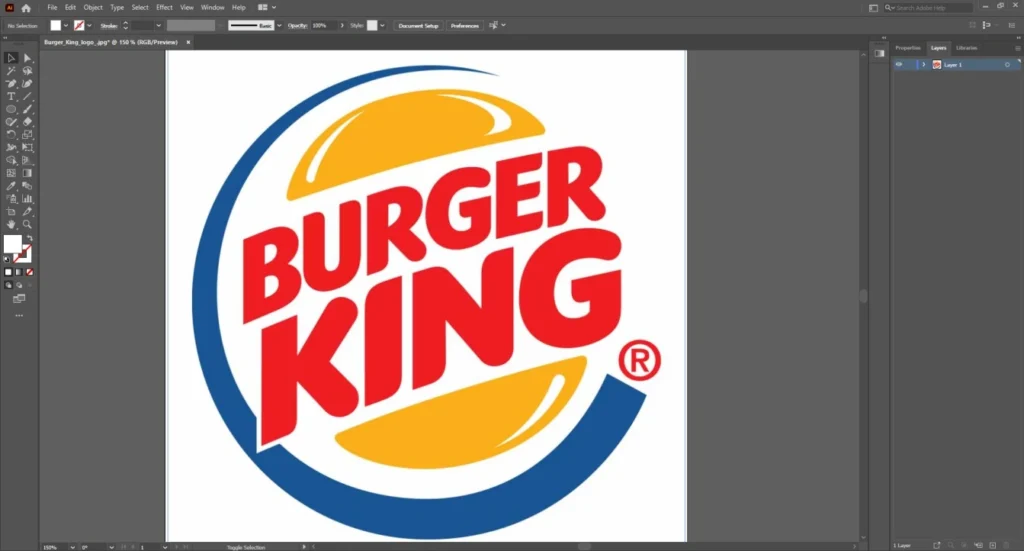
Once placed on the artboard, click on the image to select it. If we zoom in on the image, the blurry edges will be visible.
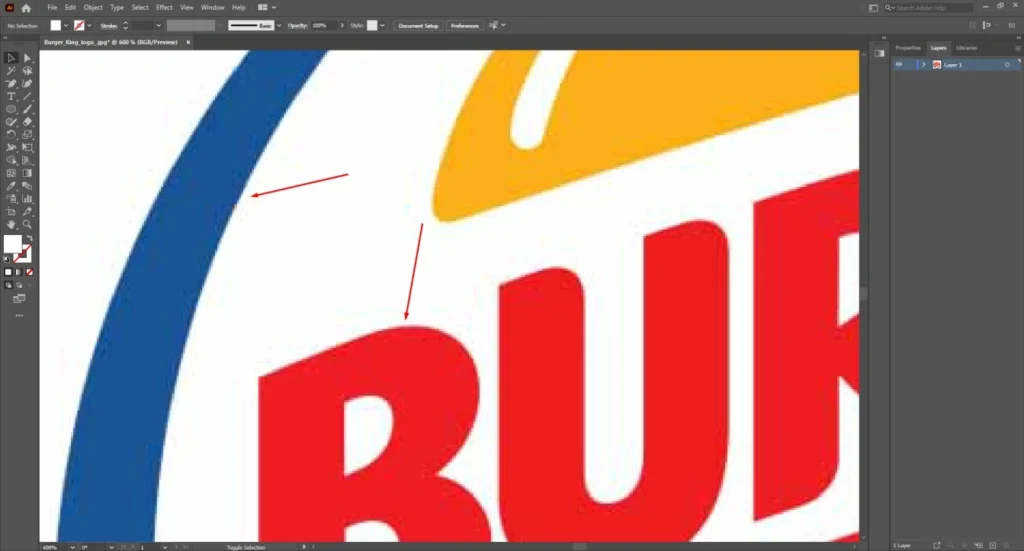
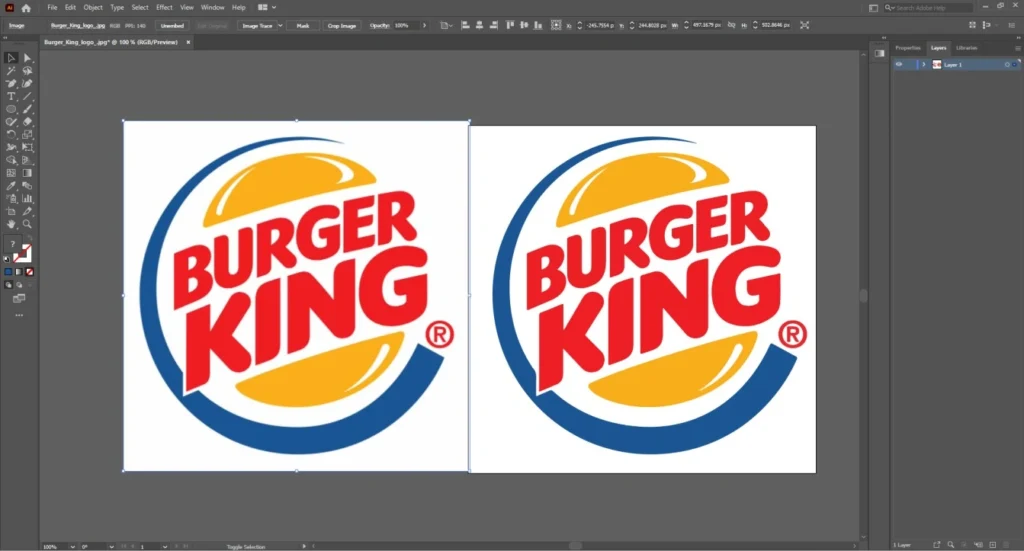
Hold the ALT key to duplicate the JPG image. It’s for reference while converting the image into a vector.
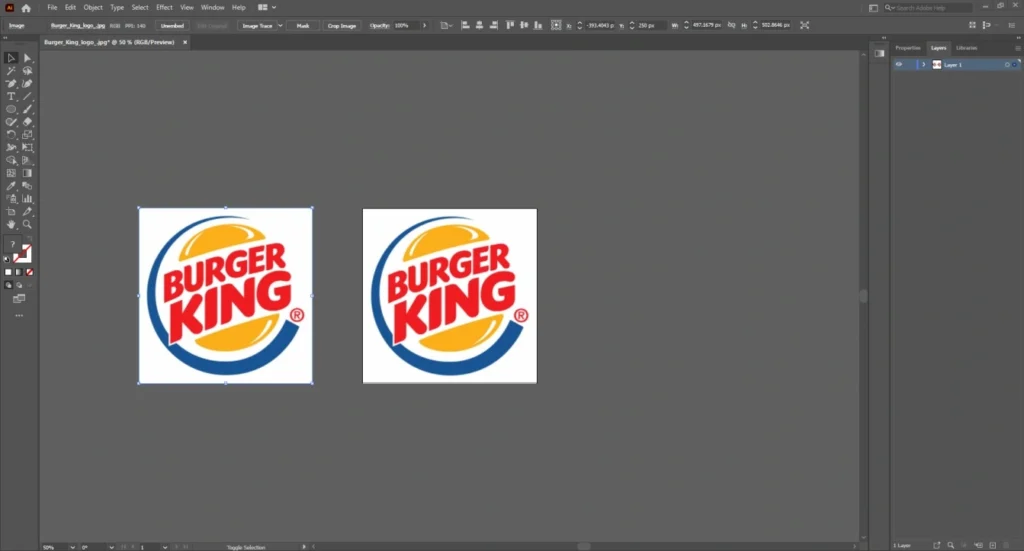
Step 2: Access Image Trace
When the image is selected, you’ll see “Image Trace” appear in the top control panel. Then, you have to click on the dropdown arrow next to it to see preset options.
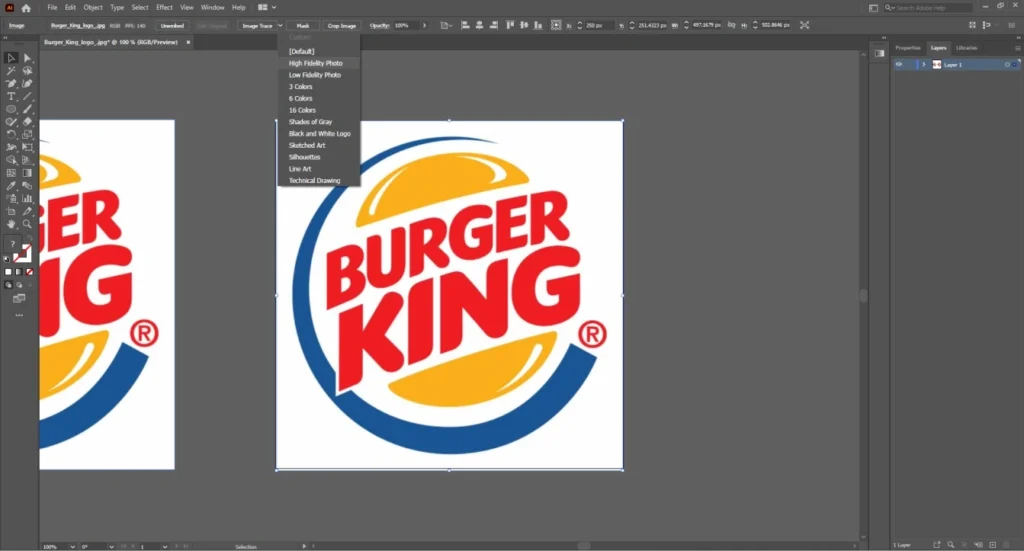
Step 3: Choose the Right Preset
If I apply the High Fidelity Photo, the image will be converted into a vector.
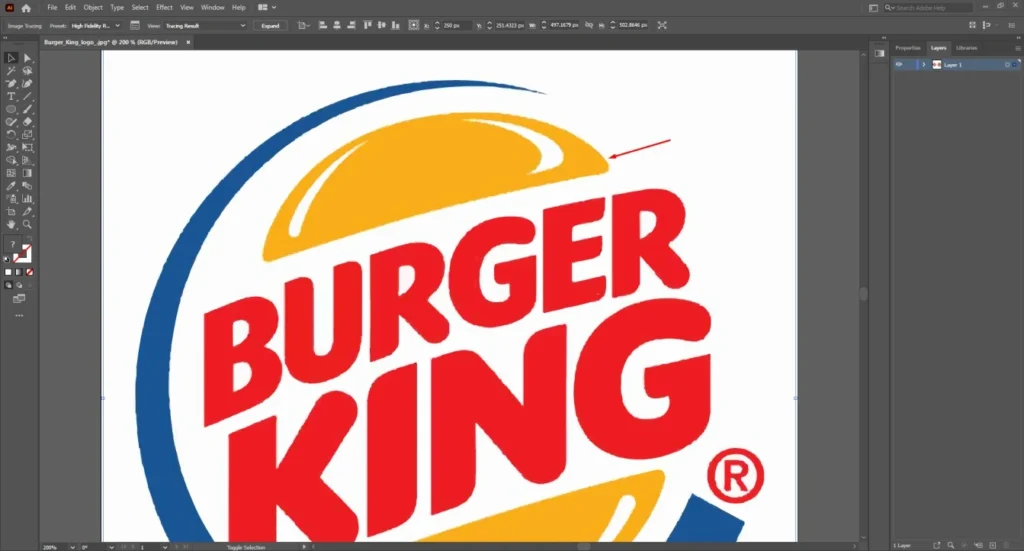
But the vector drawing is not looking precise. We have to switch to another preset. For this image, ‘16 colors’ is the best option.
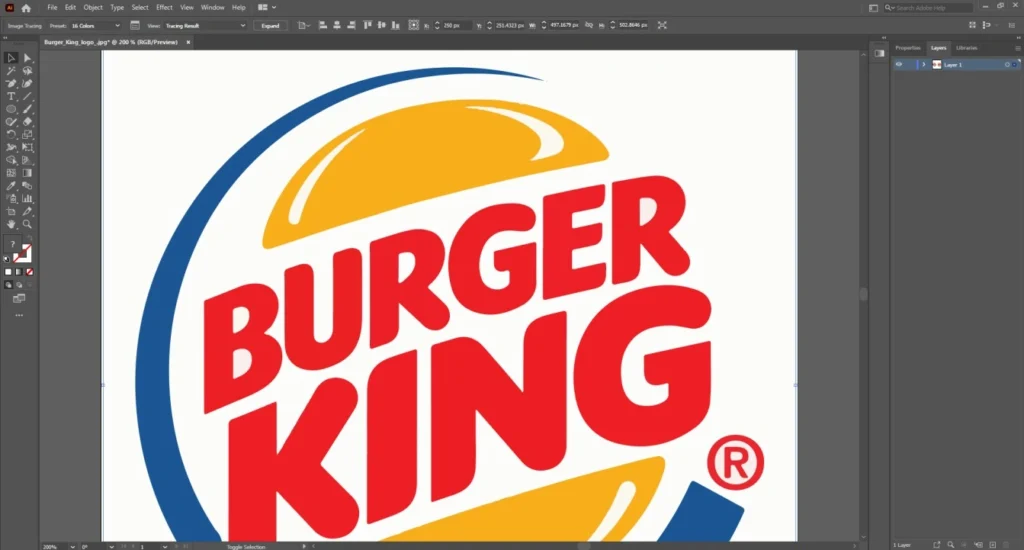
You need to pick the best option based on your image type. Illustrator will automatically process the image and convert it into a vector preview.
Step 4: Adjust the Tracing
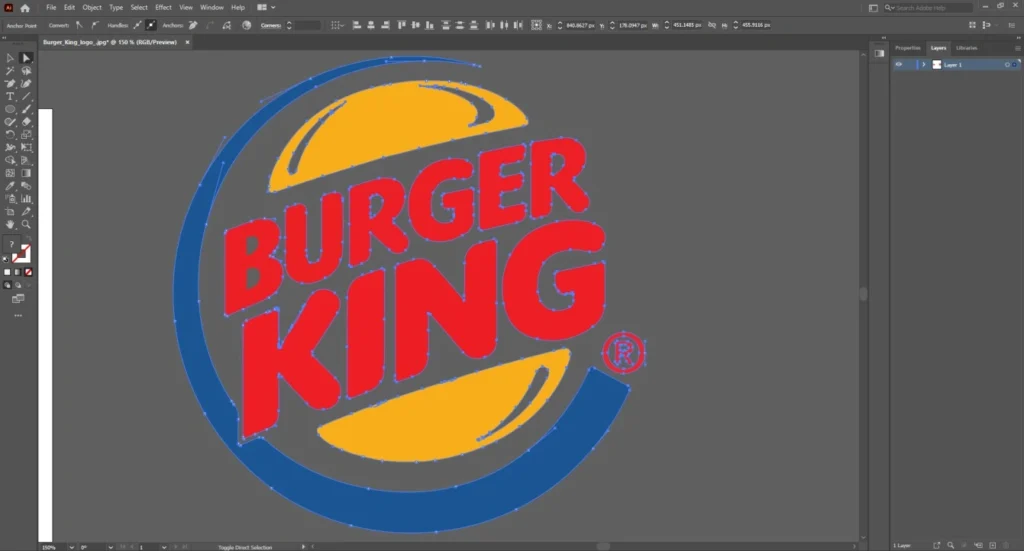
After the vector preview, you need to click on the expand option at the top. It will make the anchor points visible. Here’s the result.
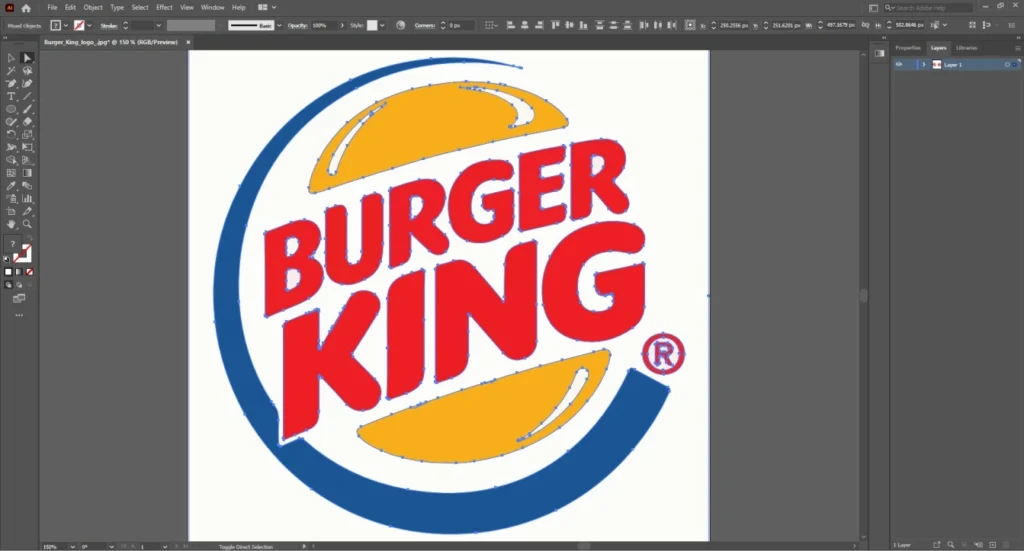
Select the vector file using the selection tool. This converts the traced result into editable vector paths. You can adjust colors, paths, and corners.
Step 5: Clean Up the Vector File
At this step, you have to right-click and choose ungroup if needed. After that, you can delete unwanted shapes and remove background areas.
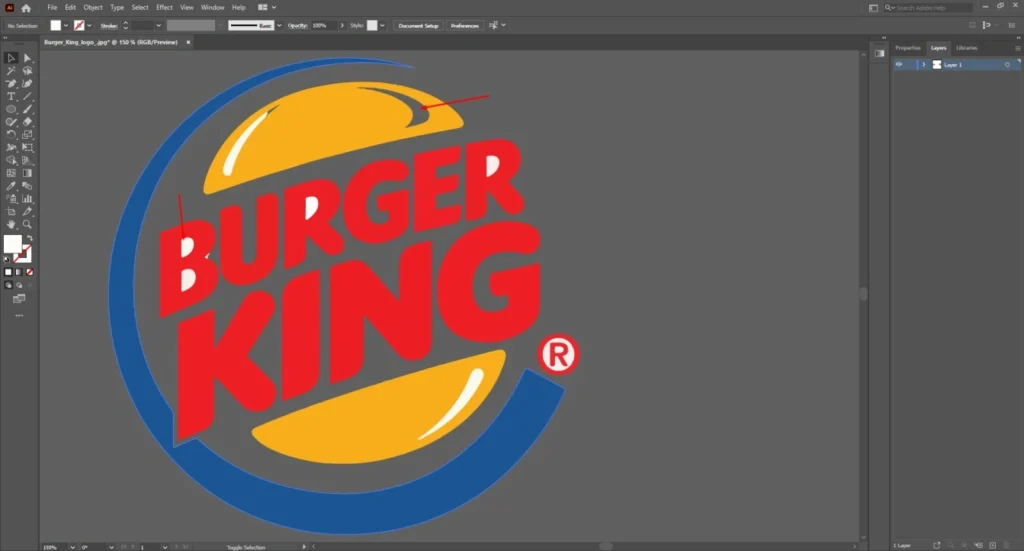
There are still some background areas remaining in the image. Click on those areas and press the delete key. You will get the JPG as a vector file.
Step 6: Save Vector Image
This is an important step. You have to save the image in a suitable vector format. You can save as SVG, AI, or EPS. If you save the image in PNG, it will be converted into a raster image.
Raster vs Vector Image Comparison
Here’s the side-by-side view of the raster image and vector image.
If you zoom in on the image, you will see the real difference.
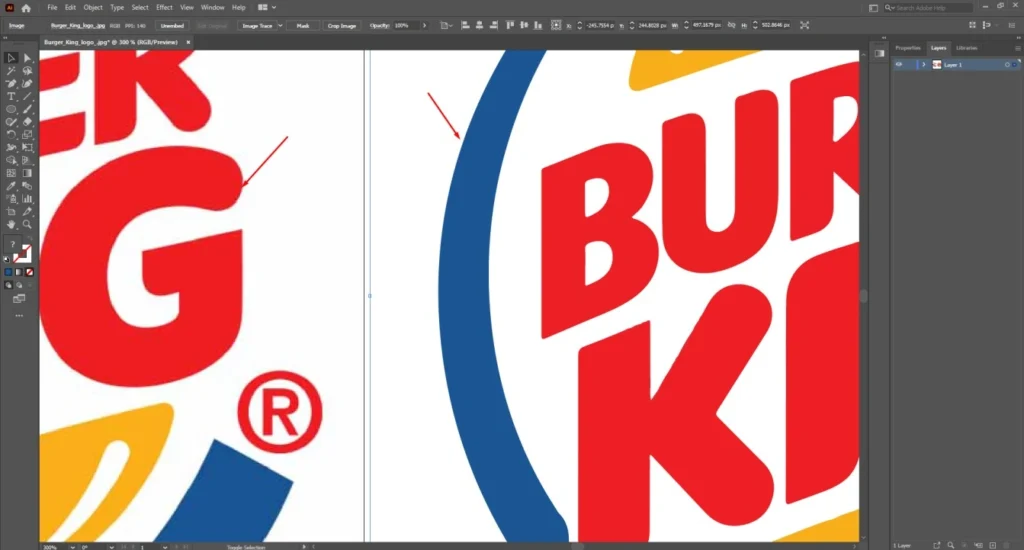
In the vector image, there won’t be any blurriness or visible edges. You can enlarge it to any size.
How to Improve the Final Vector Quality?
Image Trace gives you the foundation of a vector file. This is not the most accurate result. The final quality depends on correction. After expanding the paths, you have to simplify the Anchor Points. Too many anchor points can make curves look bumpy.
Go to the Object and select Simplify from “Path” to reduce unnecessary points. It creates smoother lines. After that, you have to zoom in at 300-500% and check for broken shapes. Then, you should manually adjust with the Direct Selection Tool.
3 Problems Most People Face with Image Tracing
- Automatic tracing sometimes creates hundreds of anchor points. It can cause issues in printing. Apply the simplify option to fix that.
- Low-resolution JPG files produce rough outlines after tracing. In that case, you have to do manual tracing.
- Image Trace can create extra color shapes that weren’t originally intended. You have to apply the color picker option to fix those colors.
Sum Up
The 16 Colors Image Trace option in Adobe Illustrator is a convenient way to convert a JPG into a vector file. This is suitable for simple logos, flat graphics, and simple jpg art. It gives you a solid starting point. To get a polished final result, you have to refine the anchor points.
You also have to pay attention to colors. Do you have some JPG images that you want to convert to vector professionally? Our vector artist is available to help you. We offer manual vector conversion, maintaining 100% accuracy. Let’s try now and get premium-quality vector files.
FAQ’s
Can you convert JPG to vector in Illustrator?
Yes, we can. We professionally provide JPG to vector conversion service in USA. We ensure 100% accurate tracing without any quality loss.
How to convert JPG to vector image?
You have to open the JPG image in Illustrator. Then, you can use an Image Trace or pen tool for the tracing. Then, you have to make other required adjustments.
How to convert a photo to vector AI?
Import the photo into Illustrator and apply a tracing method based on the object type. After that, you have to work on the refinement process to adjust anchor points.
What is the best JPG to vector converter?
Adobe Illustrator provides the most accurate results. Manual vector tracing using the pen tool and shape tools provides the highest quality output.
Can you convert JPEG to AI?
Yes, you can convert JPEG or any other raster format to AI using Illustrator. The accuracy of the vector file will depend on the tracing method.